
Create AI Agents that work with your PDFs using Chunkr, CAMEL-AI & Mistral AI
Step-by-step guide of digesting your PDFs within CAMEL framework
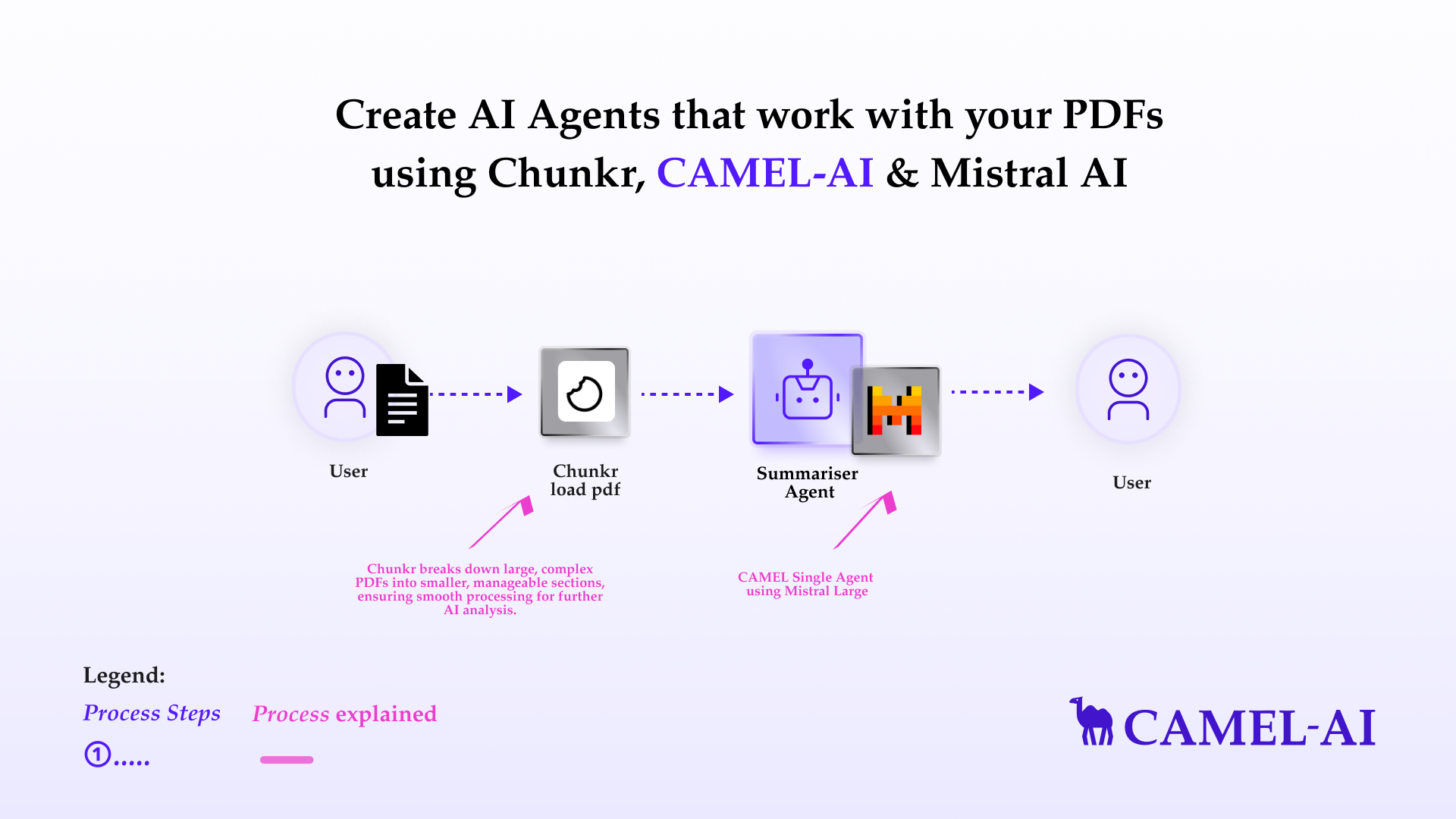
In this blog, we’ll introduce Chunkr, a cutting-edge document processing API designed for seamless and scalable data extraction and preparation, ideal for Retrieval-Augmented Generation (RAG) workflows and large language models (LLMs). Chunkr has been integrated with CAMEL. We’ll explore its three core capabilities—Segment, OCR, and Structure—each optimized to enhance document understanding and make data integration effortless. Finally, we’ll wrap up with a conclusion and a call to action.
Table of Content:
🧑🏻💻 Introduction
⚡️ Step-by-step Guide of Digesting PDFs with Chunkr
💫 Quick Demo with CAMEL Agent
🧑🏻💻 Conclusion
🧑🏻💻 Introduction
Chunkr is a versatile document chunking and ingestion pipeline API designed to revolutionize how PDF, DOCX, and image-based documents are parsed, processed, and made ready for advanced AI applications like RAG, semantic search, vector embeddings, and LLMs.
From OCR-powered text extraction and layout analysis to knowledge extraction and document classification, Chunkr simplifies the workflow of transforming raw documents into actionable data for retrieval-augmented generation pipelines and AI agents.
Key Features of Chunkr:
1. Document Segmentation:
- Breaks down documents into coherent chunks using transformer-based models.
- Provides a logical flow of content, maintaining the context needed for efficient data analysis.
2. Advanced OCR (Optical Character Recognition) Capabilities:
- Extracts text and bounding boxes from images or scanned PDFs using high-precision OCR.
- Makes content searchable, analyzable, and ready for integration into AI models.
3. Semantic Layout Analysis:
- Detects and tags content elements like headers, paragraphs, tables, and figures.
- Converts document layouts into structured outputs like HTML and Markdown.
Why Use Chunkr?
- Optimized for AI document workflows and retrieval-augmented generation
- Multi-format compatibility: PDF, DOCX, PPTX, XLSX, HTML and more
- Scalable deployment: run locally for prototypes or at scale on Kubernetes; fully open source
In this blog, we will focus on the capability of digesting PDF file with Chunkr.
First, install the CAMEL package with all its dependencies.
pip install "camel-ai[all]==0.2.11"
⚡️ Step-by-step Guide of Digesting PDFs with Chunkr
Step 1: Set up your chunkr API key. If you don't have a chunkr API key, you can obtain one by following these steps:
- Create an account: Go to chunkr.ai and sign up for an account.
- Get your API key: Once logged in, navigate to the API section of your account dashboard to find your API key. A new API key will be generated. Copy this key and store it securely.
import os
from getpass import getpass
# Prompt for the Chunkr API key securely

chunkr_api_key = getpass('Enter your API key: ')
os.environ["CHUNKR_API_KEY"] = chunkr_api_key
Step 2: Let's load the example PDF file from https://arxiv.org/pdf/2303.17760.pdf. This will be our local example data.
import os
import requests

os.makedirs('local_data', exist_ok=True)

url = "https://arxiv.org/pdf/2303.17760.pdf"
response = requests.get(url)
with open('local_data/camel_paper.pdf', 'wb') as file:
     file.write(response.content)
Step 3: Sumbit one task.
# Importing the ChunkrReader class from the camel.loaders module
# This class handles document processing using Chunkr's capabilities
from camel.loaders import ChunkrReader

# Initializing an instance of ChunkrReader
# This object will be used to submit tasks and manage document processing
chunkr_reader = ChunkrReader()

# Submitting a document processing task
# Replace "local_data/example.pdf" with the path to your target document
chunkr_reader.submit_task(file_path="local_data/camel_paper.pdf")
Step 4: Input the task id above and then we can obtain the task output.
The output of Chunkr is structured text and metadata from documents, including:
- Formatted Content: Text in structured formats like JSON, HTML, or Markdown.
- Semantic Tags: Identifies headers, paragraphs, tables, and other elements.
- Bounding Box Data: Spatial positions of text (x, y coordinates) for OCR-processed documents.
- Metadata: Information like page numbers, file type, and document properties.
# Retrieving the output of a previously submitted task
# The "max_retries" parameter determines the number of times to retry if the task output is not immediately available
chunkr_output = chunkr_reader.get_task_output(task_id="902e686a-d6f5-413d-8a8d-241a3f43d35b", max_retries=10)
print(chunkr_output)
💫 Quick Demo with CAMEL Agent
Here we choose Mistral model for our demo. If you'd like to explore different models or tools to suit your needs, feel free to visit the CAMEL documentation page, where you'll find guides and tutorials.
If you don't have a Mistral API key, you can obtain one by following these steps:
- Visit the Mistral Console (https://console.mistral.ai/)
- In the left panel, click on API keys under API section
- Choose your plan
For more details, you can also check the Mistral documentation: https://docs.mistral.ai/getting-started/quickstart/
import os
from getpass import getpass

mistral_api_key = getpass('Enter your API key')
os.environ["MISTRAL_API_KEY"] = mistral_api_key
from camel.configs import MistralConfig
from camel.models import ModelFactory
from camel.types import ModelPlatformType, ModelType

mistral_model = ModelFactory.create(
    model_platform=ModelPlatformType.MISTRAL,
    model_type=ModelType.MISTRAL_LARGE,
    model_config_dict=MistralConfig(temperature=0.0).as_dict(),
)

# Use Mistral model
model = mistral_model
from camel.agents import ChatAgent

# Initialize a ChatAgent
agent = ChatAgent(
    system_message="You're a helpful assistant",  # Define the agent's role or purpose
    message_window_size=10,  # [Optional] Specifies the chat memory length
    model=model
)

# Use the ChatAgent to generate a response based on the chunkr output
response = agent.step(f"based on {chunkr_output[:4000]}, give me a conclusion of the content")

# Print the content of the first message in the response, which contains the assistant's answer
print(response.msgs[0].content)
For advanced usage of RAG capabilities with large files, please refer to our **RAG cookbook**.
🧑🏻💻 Conclusion
In conclusion, integrating Chunkr within CAMEL-AI revolutionizes the process of document data extraction and preparation, enhancing your capabilities for AI-driven applications. With Chunkr’s robust features like Segment, OCR, and Structure, you can seamlessly process complex documents into structured, machine-readable formats optimized for LLMs, directly feeding into CAMEL-AI’s multi-agent workflows. This integration not only simplifies data preparation but also empowers intelligent and accurate analytics. With these tools at your disposal, you’re equipped to transform raw document data into actionable insights, unlocking new possibilities in automation and AI-powered decision-making.
That's everything:
Got questions about 🐫 CAMEL-AI? Join us on Discord! Whether you want to share feedback, explore the latest in multi-agent systems, get support, or connect with others on exciting projects, we’d love to have you in the community! 🤝
Check out some of our other work:
🐫 Creating Your First CAMEL Agent free Colab.
Graph RAG Cookbook free Colab.
🧑⚖️ Create A Hackathon Judge Committee with Workforce free Colab.
🔥 3 ways to ingest data from websites with Firecrawl & CAMEL free colab.
🦥 Agentic SFT Data Generation with CAMEL and Mistral Models, Fine-Tuned with Unsloth free Colab.
Thanks from everyone at 🐫 CAMEL-AI!
Recent Posts
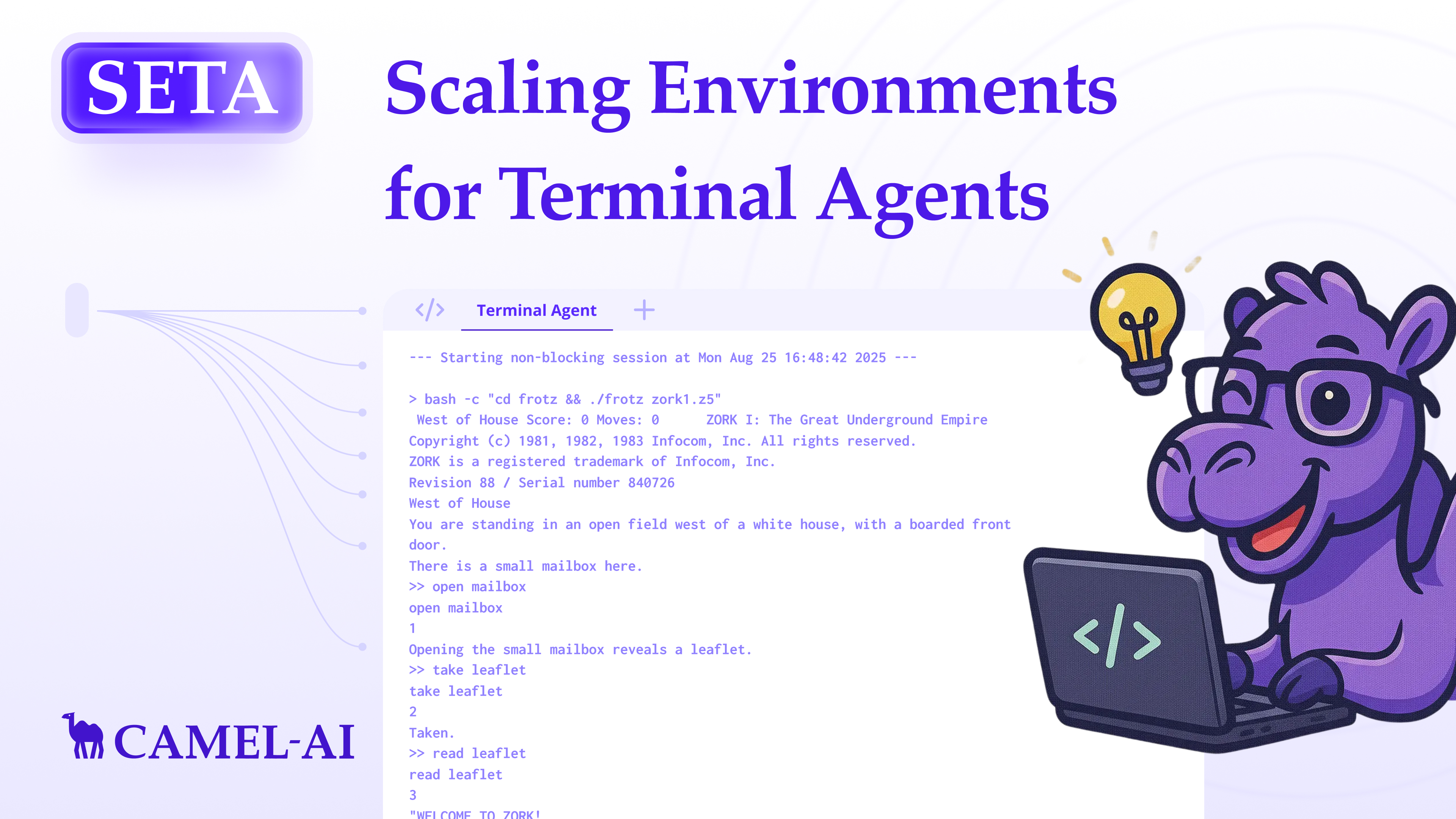
SETA: Scaling Environments for Terminal Agents
In SETA, we start with building robust toolkits to empower the agent’s planning and terminal capability, and achieved SOTA performance
Brainwash Your Agent: How We Keep The Memory Clean
How CAMEL Rebuilt Browser Automation: From Python to TypeScript for Reliable AI Agents
How CAMEL AI rebuilt browser automation with TypeScript for faster, smarter, and more reliable AI web interactions.